Tutorial 1 - LCD1602
YouTube Video
Introduction
LCD1602 is a 16-character by 2-line alphanumeric LCD module. It is commonly used to display text in clocks, robots, weather stations, and other embedded projects because it is simple, reliable, and easy to read.
The module includes a display controller and is often used through an I2C adapter, which reduces the number of GPIO connections needed on the Raspberry Pi.
Components Needed
| Component | Quantity |
|---|---|
| Raspberry Pi 5 | 1 |
| Breadboard | 1 |
| Wires | Several |
| I2C LCD1602 | 1 |
Fritzing Diagram
Connect the LCD to your Raspberry Pi as shown in the following diagram.
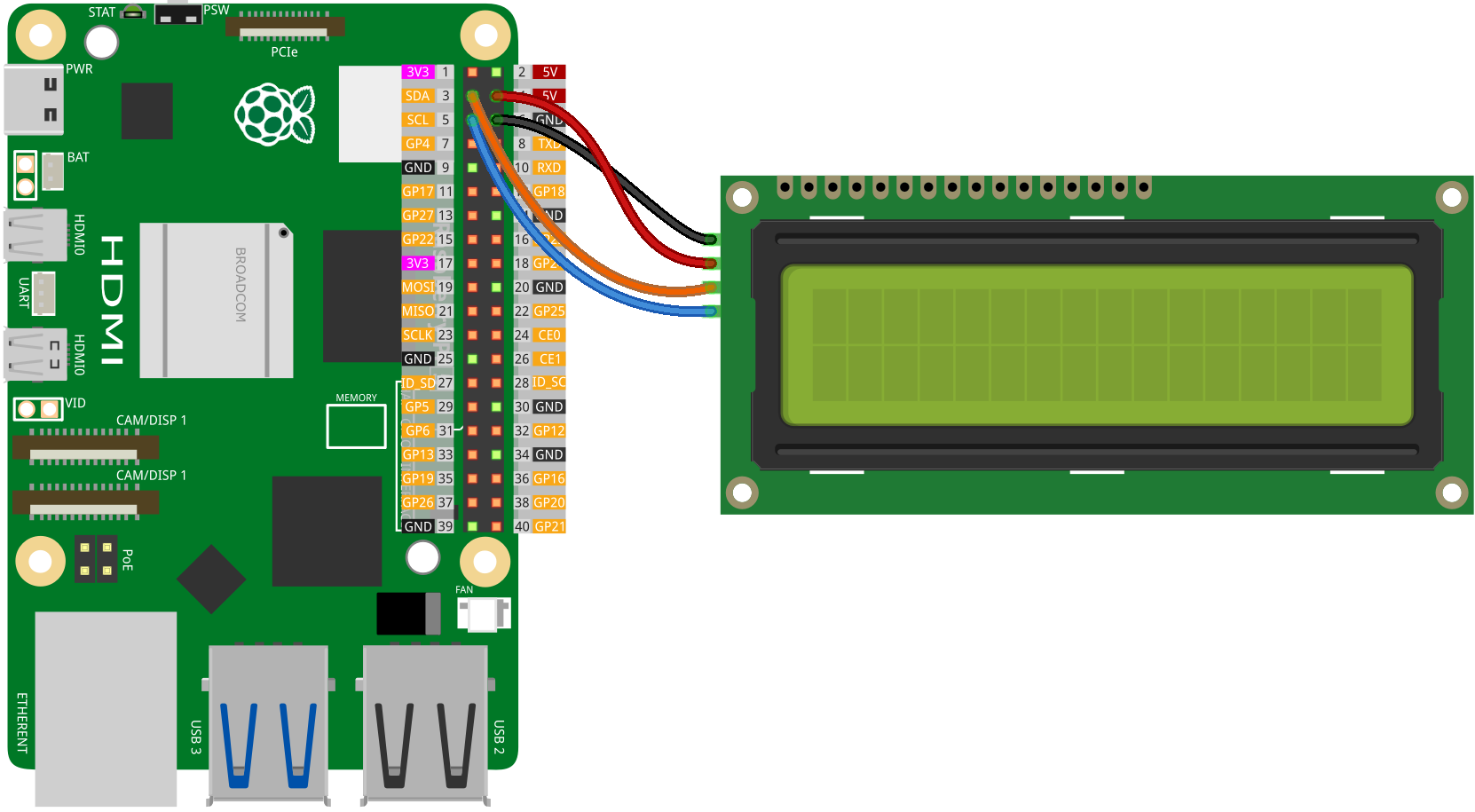
Image credit: SunFounder
LCD Library
import smbus
import time

class LCD:
    def __init__(self, pi_rev = 2, i2c_addr = 0x3F, backlight = True):

        # device constants
        self.I2C_ADDR  = i2c_addr
        self.LCD_WIDTH = 16   # Max. characters per line

        self.LCD_CHR = 1 # Mode - Sending data
        self.LCD_CMD = 0 # Mode - Sending command

        self.LCD_LINE_1 = 0x80 # LCD RAM addr for line one
        self.LCD_LINE_2 = 0xC0 # LCD RAM addr for line two

        if backlight:
            self.LCD_BACKLIGHT  = 0x08
        else:
            self.LCD_BACKLIGHT = 0x00

        self.ENABLE = 0b00000100 # Enable bit

        self.E_PULSE = 0.0005
        self.E_DELAY = 0.0005

        if pi_rev == 2:
            self.bus = smbus.SMBus(1)
        elif pi_rev == 1:
            self.bus = smbus.SMBus(0)
        else:
            raise ValueError('pi_rev param must be 1 or 2')

        self.lcd_byte(0x33, self.LCD_CMD)
        self.lcd_byte(0x32, self.LCD_CMD)
        self.lcd_byte(0x06, self.LCD_CMD)
        self.lcd_byte(0x0C, self.LCD_CMD)
        self.lcd_byte(0x28, self.LCD_CMD)
        self.lcd_byte(0x01, self.LCD_CMD)

    def lcd_byte(self, bits, mode):
        bits_high = mode | (bits & 0xF0) | self.LCD_BACKLIGHT
        bits_low = mode | ((bits << 4) & 0xF0) | self.LCD_BACKLIGHT

        self.bus.write_byte(self.I2C_ADDR, bits_high)
        self.toggle_enable(bits_high)

        self.bus.write_byte(self.I2C_ADDR, bits_low)
        self.toggle_enable(bits_low)

    def toggle_enable(self, bits):
        time.sleep(self.E_DELAY)
        self.bus.write_byte(self.I2C_ADDR, (bits | self.ENABLE))
        time.sleep(self.E_PULSE)
        self.bus.write_byte(self.I2C_ADDR, (bits & ~self.ENABLE))
        time.sleep(self.E_DELAY)

    def message(self, string, line = 1):
        if line == 1:
            lcd_line = self.LCD_LINE_1
        elif line == 2:
            lcd_line = self.LCD_LINE_2
        else:
            raise ValueError('line number must be 1 or 2')

        string = string.ljust(self.LCD_WIDTH, " ")
        self.lcd_byte(lcd_line, self.LCD_CMD)

        for i in range(self.LCD_WIDTH):
            self.lcd_byte(ord(string[i]), self.LCD_CHR)

    def clear(self):
        self.lcd_byte(0x01, self.LCD_CMD)
Code
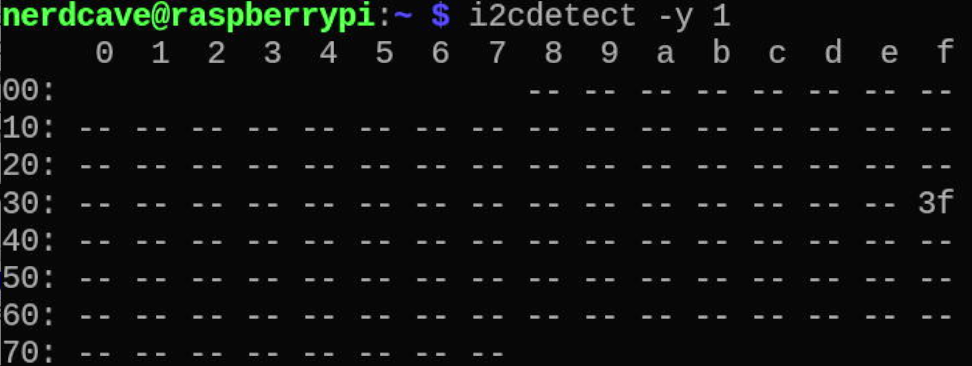
You can verify the address of the connected I2C device using the following command:
i2cdetect -y 1
Addresses of any connected I2C devices will be shown.
Make sure that the library and the following demo code are in the same directory.
import time
from LCD import LCD

# Initialize the LCD with specific parameters: Raspberry Pi revision, I2C address, and backlight status
lcd = LCD(2, 0x3f, True)

# Display messages on the LCD
lcd.message("NerdCave", 1)
lcd.message("Tutorials", 2)

# Keep the messages displayed for 5 seconds
time.sleep(5)

# Clear the LCD display
lcd.clear()
Code Explanation
import time
from LCD import LCD
time is the standard Python library for time-related tasks. LCD is a custom library used to communicate with the display.
lcd = LCD(2, 0x3f, True)
The constructor takes the Raspberry Pi revision, the I2C address of the LCD, and whether the backlight should be enabled.
lcd.message("NerdCave", 1)
lcd.message("Tutorials", 2)
These lines print text on line 1 and line 2 of the LCD.
time.sleep(5)
This leaves the message on the display for 5 seconds.
lcd.clear()
Finally, the display is cleared.