Tutorial 7 - OLED Display
Introduction
The SSD1306 OLED display is one of the most popular displays in hobby electronics.
It's compact, low-power, and perfect for displaying text, graphics, and animations.
In this tutorial, we'll use the ESP32-S3 Pico with MicroPython to explore different ways of drawing on the OLED:
- Display simple text
- Draw a bitmap using a bytearray
- Load and display an external .pbm image
- Play a simple animation from multiple images
Components Needed
| Component | Quantity |
|---|---|
| ESP32-S3 Pico | 1 |
| USB-C Cable | 1 |
| Breadboard | 1 |
| Jumper Wires | Several |
| SSD1306 OLED (I2C) | 1 |
Wiring Diagram
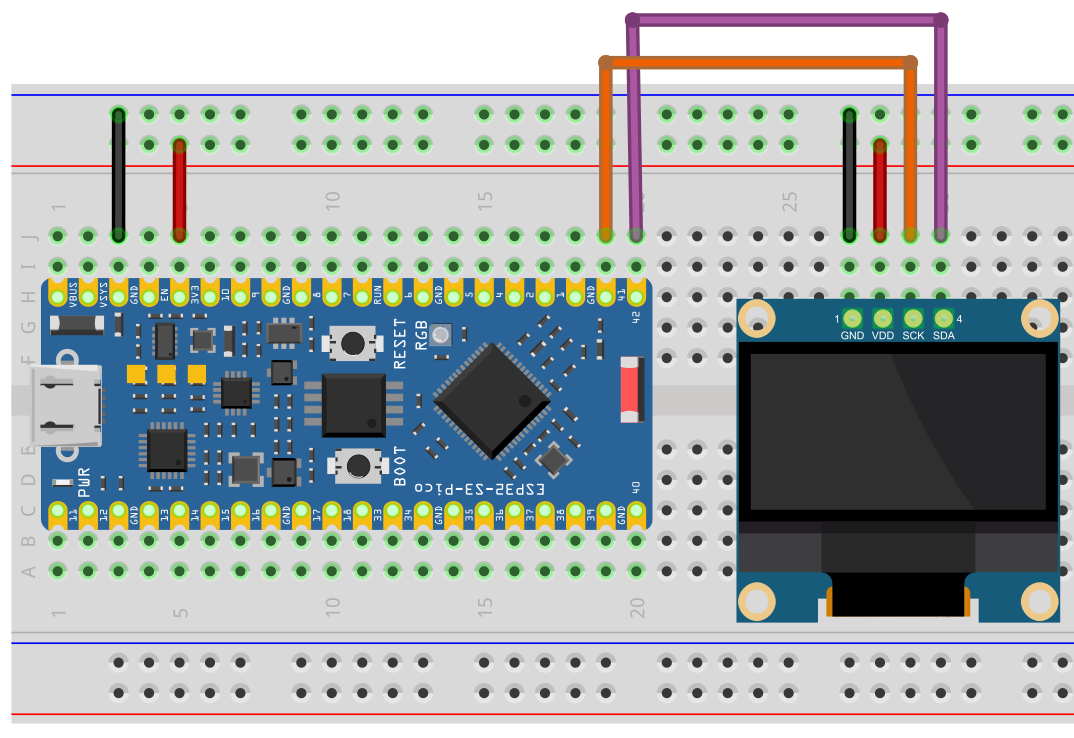
Connections:
- SCL -> GPIO41
- SDA -> GPIO42
- VCC -> 3.3V
- GND -> GND
SSD1306 OLED Library
Download the following library and save it on your ESP32S3 as ssd1306.py
# MicroPython SSD1306 OLED driver, I2C and SPI interfaces

from micropython import const
import framebuf


# register definitions
SET_CONTRAST = const(0x81)
SET_ENTIRE_ON = const(0xA4)
SET_NORM_INV = const(0xA6)
SET_DISP = const(0xAE)
SET_MEM_ADDR = const(0x20)
SET_COL_ADDR = const(0x21)
SET_PAGE_ADDR = const(0x22)
SET_DISP_START_LINE = const(0x40)
SET_SEG_REMAP = const(0xA0)
SET_MUX_RATIO = const(0xA8)
SET_IREF_SELECT = const(0xAD)
SET_COM_OUT_DIR = const(0xC0)
SET_DISP_OFFSET = const(0xD3)
SET_COM_PIN_CFG = const(0xDA)
SET_DISP_CLK_DIV = const(0xD5)
SET_PRECHARGE = const(0xD9)
SET_VCOM_DESEL = const(0xDB)
SET_CHARGE_PUMP = const(0x8D)

# Subclassing FrameBuffer provides support for graphics primitives
# http://docs.micropython.org/en/latest/pyboard/library/framebuf.html
class SSD1306(framebuf.FrameBuffer):
    def __init__(self, width, height, external_vcc):
        self.width = width
        self.height = height
        self.external_vcc = external_vcc
        self.pages = self.height // 8
        self.buffer = bytearray(self.pages * self.width)
        super().__init__(self.buffer, self.width, self.height, framebuf.MONO_VLSB)
        self.init_display()

    def init_display(self):
        for cmd in (
            SET_DISP,  # display off
            # address setting
            SET_MEM_ADDR,
            0x00,  # horizontal
            # resolution and layout
            SET_DISP_START_LINE,  # start at line 0
            SET_SEG_REMAP | 0x01,  # column addr 127 mapped to SEG0
            SET_MUX_RATIO,
            self.height - 1,
            SET_COM_OUT_DIR | 0x08,  # scan from COM[N] to COM0
            SET_DISP_OFFSET,
            0x00,
            SET_COM_PIN_CFG,
            0x02 if self.width > 2 * self.height else 0x12,
            # timing and driving scheme
            SET_DISP_CLK_DIV,
            0x80,
            SET_PRECHARGE,
            0x22 if self.external_vcc else 0xF1,
            SET_VCOM_DESEL,
            0x30,  # 0.83*Vcc
            # display
            SET_CONTRAST,
            0xFF,  # maximum
            SET_ENTIRE_ON,  # output follows RAM contents
            SET_NORM_INV,  # not inverted
            SET_IREF_SELECT,
            0x30,  # enable internal IREF during display on
            # charge pump
            SET_CHARGE_PUMP,
            0x10 if self.external_vcc else 0x14,
            SET_DISP | 0x01,  # display on
        ):  # on
            self.write_cmd(cmd)
        self.fill(0)
        self.show()

    def poweroff(self):
        self.write_cmd(SET_DISP)

    def poweron(self):
        self.write_cmd(SET_DISP | 0x01)

    def contrast(self, contrast):
        self.write_cmd(SET_CONTRAST)
        self.write_cmd(contrast)

    def invert(self, invert):
        self.write_cmd(SET_NORM_INV | (invert & 1))

    def rotate(self, rotate):
        self.write_cmd(SET_COM_OUT_DIR | ((rotate & 1) << 3))
        self.write_cmd(SET_SEG_REMAP | (rotate & 1))

    def show(self):
        x0 = 0
        x1 = self.width - 1
        if self.width != 128:
            # narrow displays use centred columns
            col_offset = (128 - self.width) // 2
            x0 += col_offset
            x1 += col_offset
        self.write_cmd(SET_COL_ADDR)
        self.write_cmd(x0)
        self.write_cmd(x1)
        self.write_cmd(SET_PAGE_ADDR)
        self.write_cmd(0)
        self.write_cmd(self.pages - 1)
        self.write_data(self.buffer)


class SSD1306_I2C(SSD1306):
    def __init__(self, width, height, i2c, addr=0x3C, external_vcc=False):
        self.i2c = i2c
        self.addr = addr
        self.temp = bytearray(2)
        self.write_list = [b"\x40", None]  # Co=0, D/C#=1
        super().__init__(width, height, external_vcc)

    def write_cmd(self, cmd):
        self.temp[0] = 0x80  # Co=1, D/C#=0
        self.temp[1] = cmd
        self.i2c.writeto(self.addr, self.temp)

    def write_data(self, buf):
        self.write_list[1] = buf
        self.i2c.writevto(self.addr, self.write_list)


class SSD1306_SPI(SSD1306):
    def __init__(self, width, height, spi, dc, res, cs, external_vcc=False):
        self.rate = 10 * 1024 * 1024
        dc.init(dc.OUT, value=0)
        res.init(res.OUT, value=0)
        cs.init(cs.OUT, value=1)
        self.spi = spi
        self.dc = dc
        self.res = res
        self.cs = cs
        import time

        self.res(1)
        time.sleep_ms(1)
        self.res(0)
        time.sleep_ms(10)
        self.res(1)
        super().__init__(width, height, external_vcc)

    def write_cmd(self, cmd):
        self.spi.init(baudrate=self.rate, polarity=0, phase=0)
        self.cs(1)
        self.dc(0)
        self.cs(0)
        self.spi.write(bytearray([cmd]))
        self.cs(1)

    def write_data(self, buf):
        self.spi.init(baudrate=self.rate, polarity=0, phase=0)
        self.cs(1)
        self.dc(1)
        self.cs(0)
        self.spi.write(buf)
        self.cs(1)
Example 1 - Displaying Text
from machine import Pin, I2C
from ssd1306 import SSD1306_I2C
import time

WIDTH = 128
HEIGHT = 64

i2c = I2C(0, scl=Pin(41), sda=Pin(42), freq=400000)
display = SSD1306_I2C(WIDTH, HEIGHT, i2c)

while True:
    display.fill(0)  # Clear screen
    display.text('Hello, NerdCave!', 0, 0)
    display.text('ESP32-S3 + OLED', 0, 16)
    display.text('Tutorial Example', 0, 32)
    display.show()
    time.sleep(2)
Step-by-Step Explanation
1. Importing Libraries
from machine import Pin, I2C
from ssd1306 import SSD1306_I2C
import time
machine.Pinandmachine.I2Care used to define GPIO pins and the I2C bus.SSD1306_I2Cis the driver for the OLED display.timeis used for delays.
2. Setting Up Constants
WIDTH = 128
HEIGHT = 64
- These values define the resolution of the OLED display.
- The most common SSD1306 displays are 128x64 pixels.
3. Initializing I2C and Display
i2c = I2C(0, scl=Pin(41), sda=Pin(42), freq=400000)
display = SSD1306_I2C(WIDTH, HEIGHT, i2c)
I2C(0, scl=Pin(41), sda=Pin(42), freq=400000)initializes I2C on bus 0 using GPIO41 for SCL and GPIO42 for SDA.SSD1306_I2C(WIDTH, HEIGHT, i2c)creates a display object linked to this I2C connection.
4. Display Loop
while True:
    display.fill(0)  # Clear screen
    display.text('Hello, NerdCave!', 0, 0)
    display.text('ESP32-S3 + OLED', 0, 16)
    display.text('Tutorial Example', 0, 32)
    display.show()
    time.sleep(2)
display.fill(0)clears the screen before drawing new content.display.text("...", x, y)writes text at pixel coordinates(x, y).display.show()updates the display with all changes.time.sleep(2)pauses for 2 seconds before refreshing.
Example 2 - Bytearray Bitmap
In this example, we'll display a custom logo (the GitHub logo) on the OLED screen.
Instead of text, we'll load an image as raw pixel data and show it with MicroPython.
To do this, we need to convert an image (PNG/JPG) into a bytearray.
One of the easiest tools is image2cpp - a free online converter that outputs code for OLED displays.
from machine import Pin, I2C
from ssd1306 import SSD1306_I2C
import framebuf

# OLED dimensions
WIDTH = 128
HEIGHT = 64

# I2C setup
i2c = I2C(0, scl=Pin(41), sda=Pin(42), freq=400000)

display = SSD1306_I2C(WIDTH, HEIGHT, i2c)

# Github Logo - "https://www.flaticon.com/free-icons/github"
github = bytearray([
    0x00, 0x00, 0x00, 0x00, 0x00, 0x00, 0x00, 0x00, 0x00, 0x00, 0x00, 0x00, 0x00, 0x00, 0x00, 0x00,
	0x00, 0x00, 0x00, 0x00, 0x00, 0x00, 0x00, 0x7f, 0xfe, 0x00, 0x00, 0x00, 0x00, 0x00, 0x00, 0x00,
	0x00, 0x00, 0x00, 0x00, 0x00, 0x00, 0x03, 0xff, 0xff, 0xc0, 0x00, 0x00, 0x00, 0x00, 0x00, 0x00,
	0x00, 0x00, 0x00, 0x00, 0x00, 0x00, 0x1f, 0xff, 0xff, 0xf8, 0x00, 0x00, 0x00, 0x00, 0x00, 0x00,
	0x00, 0x00, 0x00, 0x00, 0x00, 0x00, 0x7f, 0xff, 0xff, 0xfe, 0x00, 0x00, 0x00, 0x00, 0x00, 0x00,
	0x00, 0x00, 0x00, 0x00, 0x00, 0x01, 0xff, 0xff, 0xff, 0xff, 0x80, 0x00, 0x00, 0x00, 0x00, 0x00,
	0x00, 0x00, 0x00, 0x00, 0x00, 0x03, 0xff, 0xff, 0xff, 0xff, 0xc0, 0x00, 0x00, 0x00, 0x00, 0x00,
	0x00, 0x00, 0x00, 0x00, 0x00, 0x0f, 0xff, 0xff, 0xff, 0xff, 0xf0, 0x00, 0x00, 0x00, 0x00, 0x00,
	0x00, 0x00, 0x00, 0x00, 0x00, 0x1f, 0xff, 0xff, 0xff, 0xff, 0xf8, 0x00, 0x00, 0x00, 0x00, 0x00,
	0x00, 0x00, 0x00, 0x00, 0x00, 0x3f, 0xff, 0xff, 0xff, 0xff, 0xfc, 0x00, 0x00, 0x00, 0x00, 0x00,
	0x00, 0x00, 0x00, 0x00, 0x00, 0x7f, 0xff, 0xff, 0xff, 0xff, 0xfe, 0x00, 0x00, 0x00, 0x00, 0x00,
	0x00, 0x00, 0x00, 0x00, 0x00, 0xff, 0xff, 0xff, 0xff, 0xff, 0xff, 0x00, 0x00, 0x00, 0x00, 0x00,
	0x00, 0x00, 0x00, 0x00, 0x01, 0xff, 0xff, 0xff, 0xff, 0xff, 0xff, 0x80, 0x00, 0x00, 0x00, 0x00,
	0x00, 0x00, 0x00, 0x00, 0x01, 0xff, 0xff, 0xff, 0xff, 0xff, 0xff, 0x80, 0x00, 0x00, 0x00, 0x00,
	0x00, 0x00, 0x00, 0x00, 0x03, 0xfe, 0x1f, 0xff, 0xff, 0xfc, 0x7f, 0xc0, 0x00, 0x00, 0x00, 0x00,
	0x00, 0x00, 0x00, 0x00, 0x07, 0xfe, 0x07, 0xff, 0xff, 0xe0, 0x7f, 0xe0, 0x00, 0x00, 0x00, 0x00,
	0x00, 0x00, 0x00, 0x00, 0x07, 0xfe, 0x01, 0xf0, 0x0f, 0x80, 0x7f, 0xe0, 0x00, 0x00, 0x00, 0x00,
	0x00, 0x00, 0x00, 0x00, 0x0f, 0xfc, 0x00, 0x00, 0x00, 0x00, 0x3f, 0xf0, 0x00, 0x00, 0x00, 0x00,
	0x00, 0x00, 0x00, 0x00, 0x1f, 0xfc, 0x00, 0x00, 0x00, 0x00, 0x3f, 0xf8, 0x00, 0x00, 0x00, 0x00,
	0x00, 0x00, 0x00, 0x00, 0x1f, 0xfc, 0x00, 0x00, 0x00, 0x00, 0x3f, 0xf8, 0x00, 0x00, 0x00, 0x00,
	0x00, 0x00, 0x00, 0x00, 0x3f, 0xfc, 0x00, 0x00, 0x00, 0x00, 0x3f, 0xfc, 0x00, 0x00, 0x00, 0x00,
	0x00, 0x00, 0x00, 0x00, 0x3f, 0xfe, 0x00, 0x00, 0x00, 0x00, 0x7f, 0xfc, 0x00, 0x00, 0x00, 0x00,
	0x00, 0x00, 0x00, 0x00, 0x3f, 0xfe, 0x00, 0x00, 0x00, 0x00, 0x7f, 0xfc, 0x00, 0x00, 0x00, 0x00,
	0x00, 0x00, 0x00, 0x00, 0x3f, 0xfc, 0x00, 0x00, 0x00, 0x00, 0x3f, 0xfc, 0x00, 0x00, 0x00, 0x00,
	0x00, 0x00, 0x00, 0x00, 0x7f, 0xfc, 0x00, 0x00, 0x00, 0x00, 0x3f, 0xfe, 0x00, 0x00, 0x00, 0x00,
	0x00, 0x00, 0x00, 0x00, 0x7f, 0xf8, 0x00, 0x00, 0x00, 0x00, 0x1f, 0xfe, 0x00, 0x00, 0x00, 0x00,
	0x00, 0x00, 0x00, 0x00, 0x7f, 0xf0, 0x00, 0x00, 0x00, 0x00, 0x0f, 0xfe, 0x00, 0x00, 0x00, 0x00,
	0x00, 0x00, 0x00, 0x00, 0x7f, 0xf0, 0x00, 0x00, 0x00, 0x00, 0x0f, 0xfe, 0x00, 0x00, 0x00, 0x00,
	0x00, 0x00, 0x00, 0x00, 0xff, 0xf0, 0x00, 0x00, 0x00, 0x00, 0x0f, 0xff, 0x00, 0x00, 0x00, 0x00,
	0x00, 0x00, 0x00, 0x00, 0xff, 0xf0, 0x00, 0x00, 0x00, 0x00, 0x0f, 0xff, 0x00, 0x00, 0x00, 0x00,
	0x00, 0x00, 0x00, 0x00, 0xff, 0xf0, 0x00, 0x00, 0x00, 0x00, 0x0f, 0xff, 0x00, 0x00, 0x00, 0x00,
	0x00, 0x00, 0x00, 0x00, 0xff, 0xf0, 0x00, 0x00, 0x00, 0x00, 0x0f, 0xff, 0x00, 0x00, 0x00, 0x00,
	0x00, 0x00, 0x00, 0x00, 0xff, 0xf0, 0x00, 0x00, 0x00, 0x00, 0x0f, 0xff, 0x00, 0x00, 0x00, 0x00,
	0x00, 0x00, 0x00, 0x00, 0xff, 0xf0, 0x00, 0x00, 0x00, 0x00, 0x0f, 0xff, 0x00, 0x00, 0x00, 0x00,
	0x00, 0x00, 0x00, 0x00, 0xff, 0xf0, 0x00, 0x00, 0x00, 0x00, 0x0f, 0xff, 0x00, 0x00, 0x00, 0x00,
	0x00, 0x00, 0x00, 0x00, 0xff, 0xf0, 0x00, 0x00, 0x00, 0x00, 0x0f, 0xff, 0x00, 0x00, 0x00, 0x00,
	0x00, 0x00, 0x00, 0x00, 0xff, 0xf0, 0x00, 0x00, 0x00, 0x00, 0x0f, 0xff, 0x00, 0x00, 0x00, 0x00,
	0x00, 0x00, 0x00, 0x00, 0xff, 0xf8, 0x00, 0x00, 0x00, 0x00, 0x1f, 0xff, 0x00, 0x00, 0x00, 0x00,
	0x00, 0x00, 0x00, 0x00, 0x7f, 0xf8, 0x00, 0x00, 0x00, 0x00, 0x1f, 0xfe, 0x00, 0x00, 0x00, 0x00,
	0x00, 0x00, 0x00, 0x00, 0x7f, 0xf8, 0x00, 0x00, 0x00, 0x00, 0x1f, 0xfe, 0x00, 0x00, 0x00, 0x00,
	0x00, 0x00, 0x00, 0x00, 0x7f, 0xfc, 0x00, 0x00, 0x00, 0x00, 0x3f, 0xfe, 0x00, 0x00, 0x00, 0x00,
	0x00, 0x00, 0x00, 0x00, 0x7f, 0xfc, 0x00, 0x00, 0x00, 0x00, 0x3f, 0xfe, 0x00, 0x00, 0x00, 0x00,
	0x00, 0x00, 0x00, 0x00, 0x3f, 0xfe, 0x00, 0x00, 0x00, 0x00, 0x7f, 0xfc, 0x00, 0x00, 0x00, 0x00,
	0x00, 0x00, 0x00, 0x00, 0x3f, 0xff, 0x00, 0x00, 0x00, 0x00, 0xff, 0xfc, 0x00, 0x00, 0x00, 0x00,
	0x00, 0x00, 0x00, 0x00, 0x3f, 0xff, 0xc0, 0x00, 0x00, 0x03, 0xff, 0xfc, 0x00, 0x00, 0x00, 0x00,
	0x00, 0x00, 0x00, 0x00, 0x1f, 0x9f, 0xf0, 0x00, 0x00, 0x0f, 0xff, 0xf8, 0x00, 0x00, 0x00, 0x00,
	0x00, 0x00, 0x00, 0x00, 0x1f, 0x87, 0xff, 0x00, 0x00, 0xff, 0xff, 0xf8, 0x00, 0x00, 0x00, 0x00,
	0x00, 0x00, 0x00, 0x00, 0x0f, 0xc3, 0xff, 0xc0, 0x03, 0xff, 0xff, 0xf0, 0x00, 0x00, 0x00, 0x00,
	0x00, 0x00, 0x00, 0x00, 0x0f, 0xe1, 0xff, 0x80, 0x01, 0xff, 0xff, 0xf0, 0x00, 0x00, 0x00, 0x00,
	0x00, 0x00, 0x00, 0x00, 0x07, 0xf0, 0xff, 0x80, 0x01, 0xff, 0xff, 0xe0, 0x00, 0x00, 0x00, 0x00,
	0x00, 0x00, 0x00, 0x00, 0x07, 0xf8, 0x7f, 0x00, 0x00, 0xff, 0xff, 0xe0, 0x00, 0x00, 0x00, 0x00,
	0x00, 0x00, 0x00, 0x00, 0x03, 0xf8, 0x3f, 0x00, 0x00, 0xff, 0xff, 0xc0, 0x00, 0x00, 0x00, 0x00,
	0x00, 0x00, 0x00, 0x00, 0x01, 0xfc, 0x00, 0x00, 0x00, 0xff, 0xff, 0x80, 0x00, 0x00, 0x00, 0x00,
	0x00, 0x00, 0x00, 0x00, 0x00, 0xfc, 0x00, 0x00, 0x00, 0xff, 0xff, 0x00, 0x00, 0x00, 0x00, 0x00,
	0x00, 0x00, 0x00, 0x00, 0x00, 0x7e, 0x00, 0x00, 0x00, 0xff, 0xfe, 0x00, 0x00, 0x00, 0x00, 0x00,
	0x00, 0x00, 0x00, 0x00, 0x00, 0x7f, 0x00, 0x00, 0x00, 0xff, 0xfe, 0x00, 0x00, 0x00, 0x00, 0x00,
	0x00, 0x00, 0x00, 0x00, 0x00, 0x1f, 0xf3, 0x00, 0x00, 0xff, 0xf8, 0x00, 0x00, 0x00, 0x00, 0x00,
	0x00, 0x00, 0x00, 0x00, 0x00, 0x0f, 0xff, 0x00, 0x00, 0xff, 0xf0, 0x00, 0x00, 0x00, 0x00, 0x00,
	0x00, 0x00, 0x00, 0x00, 0x00, 0x07, 0xff, 0x00, 0x00, 0xff, 0xe0, 0x00, 0x00, 0x00, 0x00, 0x00,
	0x00, 0x00, 0x00, 0x00, 0x00, 0x03, 0xff, 0x00, 0x00, 0xff, 0xc0, 0x00, 0x00, 0x00, 0x00, 0x00,
	0x00, 0x00, 0x00, 0x00, 0x00, 0x00, 0xff, 0x00, 0x00, 0xff, 0x00, 0x00, 0x00, 0x00, 0x00, 0x00,
	0x00, 0x00, 0x00, 0x00, 0x00, 0x00, 0x3f, 0x00, 0x00, 0xfc, 0x00, 0x00, 0x00, 0x00, 0x00, 0x00,
	0x00, 0x00, 0x00, 0x00, 0x00, 0x00, 0x0f, 0x00, 0x00, 0xf0, 0x00, 0x00, 0x00, 0x00, 0x00, 0x00,
	0x00, 0x00, 0x00, 0x00, 0x00, 0x00, 0x00, 0x00, 0x00, 0x00, 0x00, 0x00, 0x00, 0x00, 0x00, 0x00
])


# Now it will work
fbuf = framebuf.FrameBuffer(github, 128, 64, framebuf.MONO_HLSB)

display.fill(0)
display.blit(fbuf, 0, 0)
display.show()
Step-by-Step Explanation
1. Converting an Image with image2cpp
- Go to image2cpp.
- Upload your image (resize to fit OLED, e.g., 128x64).
- Choose Monochrome output.
- Export as Arduino code.
The tool generates something like this:
// 'github', 128x64px
const unsigned char epd_bitmap_github [] PROGMEM = {
    0x00, 0x00, 0x00, 0x00, 0x7f, 0xfe, 0x00, 0x00,
    ... (more bytes) ...
};
2. Cleaning the Output for MicroPython
The converter gives you Arduino-style C code, but MicroPython only needs the raw bytes.
So instead of this:
const unsigned char epd_bitmap_github [] PROGMEM = { ... };
We keep only the numbers and put them inside a Python bytearray:
github = bytearray([
    0x00, 0x00, 0x00, 0x00, 0x7f, 0xfe, 0x00, 0x00,
    ... (more bytes) ...
])
3. Displaying the Image
fbuf = framebuf.FrameBuffer(github, 128, 64, framebuf.MONO_HLSB)
display.blit(fbuf, 0, 0)
display.show()
FrameBufferturns the bytearray into a pixel map.blit()copies the image onto the OLED.show()refreshes the display so you see the logo.
Example 3 - Display an Image (.pbm)
In this example, we'll display an image stored as a PBM file on the OLED.
PBM (Portable Bitmap) is a simple 1-bit image format (black/white only) that works well for small OLED screens.
This method is useful when you want to store image files on the microcontroller's filesystem and load them dynamically.
from machine import Pin, I2C
from ssd1306 import SSD1306_I2C
import framebuf

i2c = I2C(0, scl=Pin(41), sda=Pin(42), freq=400000)
display = SSD1306_I2C(128, 64, i2c)

# Open PBM image file
with open('image1.pbm', 'rb') as f:
    f.readline() # Magic number
    f.readline() # Creator comment
    f.readline() # Dimensions
    data = bytearray(f.read())

fbuf = framebuf.FrameBuffer(data, 128, 64, framebuf.MONO_HLSB)

display.fill(0)
display.blit(fbuf, 0, 0)
display.show()
Step-by-Step Explanation
1. Opening the PBM File
with open('image1.pbm', 'rb') as f:
    f.readline() # Magic number
    f.readline() # Creator comment
    f.readline() # Dimensions
    data = bytearray(f.read())
- PBM files start with header lines:
- Magic number (e.g.,
P4) -> tells it's a PBM file. - Comment (optional).
- Dimensions (e.g.,
64 64).
- Magic number (e.g.,
- After these lines, the file contains the raw bitmap bytes.
2. Creating a FrameBuffer
fbuf = framebuf.FrameBuffer(data, 64, 64, framebuf.MONO_HLSB)
- Converts the byte data into a drawable framebuffer.
- Here the image is 64x64 pixels.
MONO_HLSBmeans bits are mapped Least Significant Bit first.
3. Drawing on the OLED
display.fill(0)
display.blit(fbuf, 0, 0)
display.show()
fill(0)clears the display.blit(fbuf, 0, 0)show()refreshes the OLED.
Tips for Creating PBM Files
- GIMP -> Export as PBM (choose monochrome 1-bit format).
- IrfanView -> Batch convert PNGs/JPGs to PBM for multiple icons/logos.
- Resize your images to fit your OLED (e.g., 64x64).
Example 4 - Simple Animation
In this final example, we'll create a simple animation on the OLED display.
The trick is to split an animation into multiple image frames, save them as PBM files, and then display them quickly in sequence.
This is useful for loading animated icons, loading screens, or fun splash screens on your projects.
from machine import Pin, I2C
from ssd1306 import SSD1306_I2C
import framebuf
import time

WIDTH = 128
HEIGHT = 64

i2c = I2C(0, scl=Pin(41), sda=Pin(42), freq=400000)
display = SSD1306_I2C(WIDTH, HEIGHT, i2c)

images = []
for n in range(1, 29):  # Load 28 images
    with open('/youtube/image%s.pbm' % n, 'rb') as f:
        f.readline() # Magic number
        f.readline() # Creator comment
        f.readline() # Dimensions
        data = bytearray(f.read())
    fbuf = framebuf.FrameBuffer(data, 64, 64, framebuf.MONO_HLSB)
    images.append(fbuf)

while True:
    for i in images:
        display.fill(0)
        display.blit(i, 32, 0)
        display.show()
        time.sleep(0.01)
Step-by-Step Explanation
1. Preparing the Animation Frames
- Choose an animated icon (for example, from flaticon.com).
- Convert it into a GIF or use an existing GIF.
- Go to ezgif.com and split the animation into PNG frames.
- Use IrfanView (batch convert) to turn all PNGs into PBM files.
- Name them sequentially:
image1.pbm,image2.pbm, ...,image28.pbm.
2. Loading Frames in MicroPython
images = []
for n in range(1, 29):
    with open('/youtube/image%s.pbm' % n, 'rb') as f:
        f.readline() # Magic number
        f.readline() # Comment
        f.readline() # Dimensions
        data = bytearray(f.read())
    fbuf = framebuf.FrameBuffer(data, 64, 64, framebuf.MONO_HLSB)
    images.append(fbuf)
- Reads all PBM files and stores them as
FrameBufferobjects. - Each frame is 64x64 pixels.
- All frames are kept in memory inside the
imageslist.
3. Playing the Animation
while True:
    for i in images:
        display.fill(0)
        display.blit(i, 32, 0)
        display.show()
        time.sleep(0.01)
- Loops through all frames and draws them on the OLED.
time.sleep(0.01)controls the animation speed (lower = faster).
Summary
- Use flaticon.com to find free animated icons.
- Convert GIF -> PNG frames with ezgif.com.
- Batch convert PNG -> PBM using IrfanView.
- Load all PBM frames in MicroPython and play them like a flipbook.
This method lets you create fun animations on your ESP32-S3 OLED display, perfect for adding polish to your DIY projects.