Tutorial 5 - I2C LCD1602
Introduction
The 1602 LCD is a classic display module that can show two lines of 16 characters each.
Using the I2C adapter on the back of the LCD makes it simple to connect with only two pins: SDA and SCL.
In this tutorial, we'll learn how to connect the I2C 1602 LCD to the ESP32-S3 Pico and write MicroPython code to display text.
YouTube Video
Components Needed
| Component | Quantity |
|---|---|
| ESP32-S3 Pico | 1 |
| USB-C Cable | 1 |
| Breadboard | 1 |
| Jumper Wires M-F | 4 |
| I2C LCD1602 Module | 1 |
Fritzing Diagram
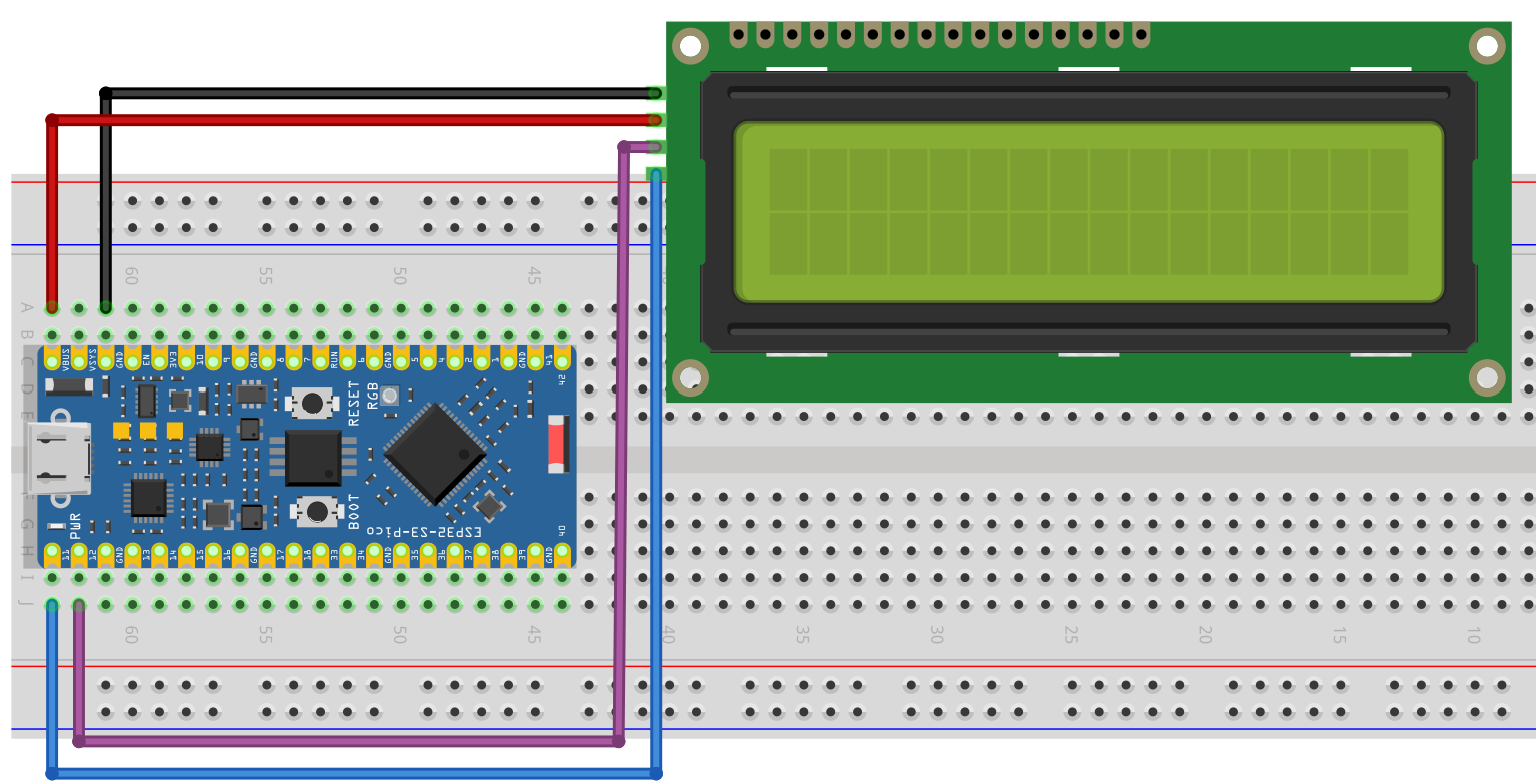
Connections:
- SDA -> GPIO12
- SCL -> GPIO11
- VCC -> 5V
- GND -> GND
Library
Save the following library as lcd1602.py
import machine
import time


class LCD:
    def __init__(self, i2c, addr=None, blen=1):
        self.bus = i2c
        self.addr = self.scanAddress(addr)
        self.blen = blen
        self.send_command(0x33)  # Must initialize to 8-line mode at first
        time.sleep(0.005)
        self.send_command(0x32)  # Then initialize to 4-line mode
        time.sleep(0.005)
        self.send_command(0x28)  # 2 Lines & 5*7 dots
        time.sleep(0.005)
        self.send_command(0x0C)  # Enable display without cursor
        time.sleep(0.005)
        self.send_command(0x01)  # Clear Screen
        self.bus.writeto(self.addr, bytearray([0x08]))

    def scanAddress(self, addr):
        devices = self.bus.scan()
        if len(devices) == 0:
            raise Exception("No LCD found")
        if addr is not None:
            if addr in devices:
                return addr
            else:
                raise Exception(f"LCD at 0x{addr:2X} not found")
        elif 0x27 in devices:
            return 0x27
        elif 0x3F in devices:
            return 0x3F
        else:
            raise Exception("No LCD found")

    def write_word(self, data):
        temp = data
        if self.blen == 1:
            temp |= 0x08
        else:
            temp &= 0xF7
        self.bus.writeto(self.addr, bytearray([temp]))

    def send_command(self, cmd):
        # Send bit7-4 firstly
        buf = cmd & 0xF0
        buf |= 0x04  # RS = 0, RW = 0, EN = 1
        self.write_word(buf)
        time.sleep(0.002)
        buf &= 0xFB  # Make EN = 0
        self.write_word(buf)

        # Send bit3-0 secondly
        buf = (cmd & 0x0F) << 4
        buf |= 0x04  # RS = 0, RW = 0, EN = 1
        self.write_word(buf)
        time.sleep(0.002)
        buf &= 0xFB  # Make EN = 0
        self.write_word(buf)

    def send_data(self, data):
        # Send bit7-4 firstly
        buf = data & 0xF0
        buf |= 0x05  # RS = 1, RW = 0, EN = 1
        self.write_word(buf)
        time.sleep(0.002)
        buf &= 0xFB  # Make EN = 0
        self.write_word(buf)

        # Send bit3-0 secondly
        buf = (data & 0x0F) << 4
        buf |= 0x05  # RS = 1, RW = 0, EN = 1
        self.write_word(buf)
        time.sleep(0.002)
        buf &= 0xFB  # Make EN = 0
        self.write_word(buf)

    def clear(self):
        self.send_command(0x01)  # Clear Screen

    def openlight(self):  # Enable the backlight
        self.bus.writeto(self.addr, bytearray([0x08]))
        # self.bus.close()

    def write(self, x, y, str):
        if x < 0:
            x = 0
        if x > 15:
            x = 15
        if y < 0:
            y = 0
        if y > 1:
            y = 1

        # Move cursor
        addr = 0x80 + 0x40 * y + x
        self.send_command(addr)

        for chr in str:
            self.send_data(ord(chr))

    def message(self, text):
        # print("message: %s"%text)
        for char in text:
            if char == "\n":
                self.send_command(0xC0)  # next line
            else:
                self.send_data(ord(char))
Demo Code - LCD Basics
from machine import I2C, Pin
from lcd1602 import LCD   # <-- your class saved as lcd1602.py
import time

# -----------------------------------------------------
# 1. Setup I2C and LCD
# -----------------------------------------------------
# Adjust pins SDA=12 and SCL=11 to match your wiring
i2c = I2C(0, sda=Pin(12), scl=Pin(11), freq=400000)

# Create an LCD object
lcd = LCD(i2c)

# -----------------------------------------------------
# 2. Basic text output
# -----------------------------------------------------
# Write a simple message (line 1 & 2 separated by \n)
lcd.message("Hello World!\nLine 2")
time.sleep(3)

# Clear the screen
lcd.clear()

# -----------------------------------------------------
# 3. Using lcd.write(x, y, text)
# -----------------------------------------------------
# lcd.write(column, row, text)
# column: 0-15   (16 characters per line)
# row:    0-1    (2 lines total)
lcd.write(0, 0, "Top Left")
lcd.write(8, 0, "Center")
lcd.write(0, 1, "Bottom Line")
time.sleep(3)

lcd.clear()

# -----------------------------------------------------
# 4. Update text dynamically
# -----------------------------------------------------
lcd.write(0, 0, "Counting:")
for i in range(11):
    lcd.write(10, 0, str(i))  # overwrite number each loop
    time.sleep(0.5)

lcd.clear()

# -----------------------------------------------------
# 5. Multiline message with lcd.message()
# -----------------------------------------------------
lcd.message("Line One\nLine Two")
time.sleep(3)

lcd.clear()

# -----------------------------------------------------
# 6. Backlight control (optional)
# -----------------------------------------------------
lcd.openlight()   # turn on backlight (already on by default)
# (You can add more if you extend the class)
Code Explanation
-
lcd.message("text\nmore text") Prints two lines at once. Use \n to move to the second line.
-
lcd.write(x, y, "text") Prints text starting at a specific position.
x = column (0-15, since the display is 16 characters wide).
y = row (0 for top, 1 for bottom).
-
lcd.clear() Clears everything on the display. Useful before writing new messages.
-
lcd.openlight() Turns on the LCD backlight (already on by default).
Building More Advanced Effects
By combining these basic functions with loops, delays, and string formatting, you can create:
Progress bars and loading screens
Typing effects (letters appear one at a time)
Flashing cursors or animations
Real-time data displays (like sensor values or counters)
OK With these building blocks, you can design menus, status updates, and professional-looking interfaces for your projects using the I2C LCD1602 display.
Intro Script
Here is the script I am using for future intros for the video
from machine import I2C, Pin
from lcd1602 import LCD
import time

# -------------------
# Helper Functions
# -------------------

def type_text(lcd, text, row, center=False, delay=0.2):
    """Type out text letter by letter on a given row.
       If center=True, it will center the text on the row."""
    if center:
        start = (16 - len(text)) // 2
    else:
        start = 0
    for i, ch in enumerate(text):
        lcd.write(start + i, row, ch)
        time.sleep(delay)

def flash_cursor(lcd, row, col, block=chr(255), flashes=6, delay=0.5, keep=True):
    """Flash a block cursor at the given row/col."""
    for _ in range(flashes):
        lcd.write(col, row, block)
        time.sleep(delay)
        lcd.write(col, row, " ")
        time.sleep(delay)
    if keep:
        lcd.write(col, row, block)

def loading_screen(lcd, steps=16, delay=0.2, block=chr(255)):
    """Display a loading bar with percentage on LCD."""
    for i in range(steps + 1):
        percent = int((i / steps) * 100)
        # Keep "Loading XX%" centered
        text = "Loading {:3d}%".format(percent)
        start = (16 - len(text)) // 2
        lcd.write(start, 0, text)
        bar = block * i + " " * (steps - i)
        lcd.write(0, 1, bar)
        time.sleep(delay)

# -------------------
# Main Program
# -------------------

i2c = I2C(0, sda=Pin(12), scl=Pin(11), freq=400000)
lcd = LCD(i2c)

lcd.clear()

# 1) Loading sequence
loading_screen(lcd)

time.sleep(1)
lcd.clear()

# 2) Tutorial text
line1 = "Tutorial 5:"
line2 = "I2C LCD 1602"
type_text(lcd, line1, row=0, center=True, delay=0.2)
time.sleep(0.5)
type_text(lcd, line2, row=1, center=True, delay=0.2)

# Flash cursor after "2"
cursor_pos = (16 - len(line2)) // 2 + len(line2)
flash_cursor(lcd, row=1, col=cursor_pos, flashes=4, delay=0.4)

time.sleep(2)
lcd.clear()

# 3) Author text
line1 = "by"
line2 = "NerdCave"
type_text(lcd, line1, row=0, center=True, delay=0.2)
time.sleep(0.5)
type_text(lcd, line2, row=1, center=True, delay=0.2)

# Flash cursor after "NerdCave"
cursor_pos = (16 - len(line2)) // 2 + len(line2)
flash_cursor(lcd, row=1, col=cursor_pos, flashes=6, delay=0.5)